Reading trouble codes (Diagnostics)
Read and clear check-engine codes with an OBD2 adapter or the Kivo Core.
When the check-engine light comes on, tap Diags on the home screen.
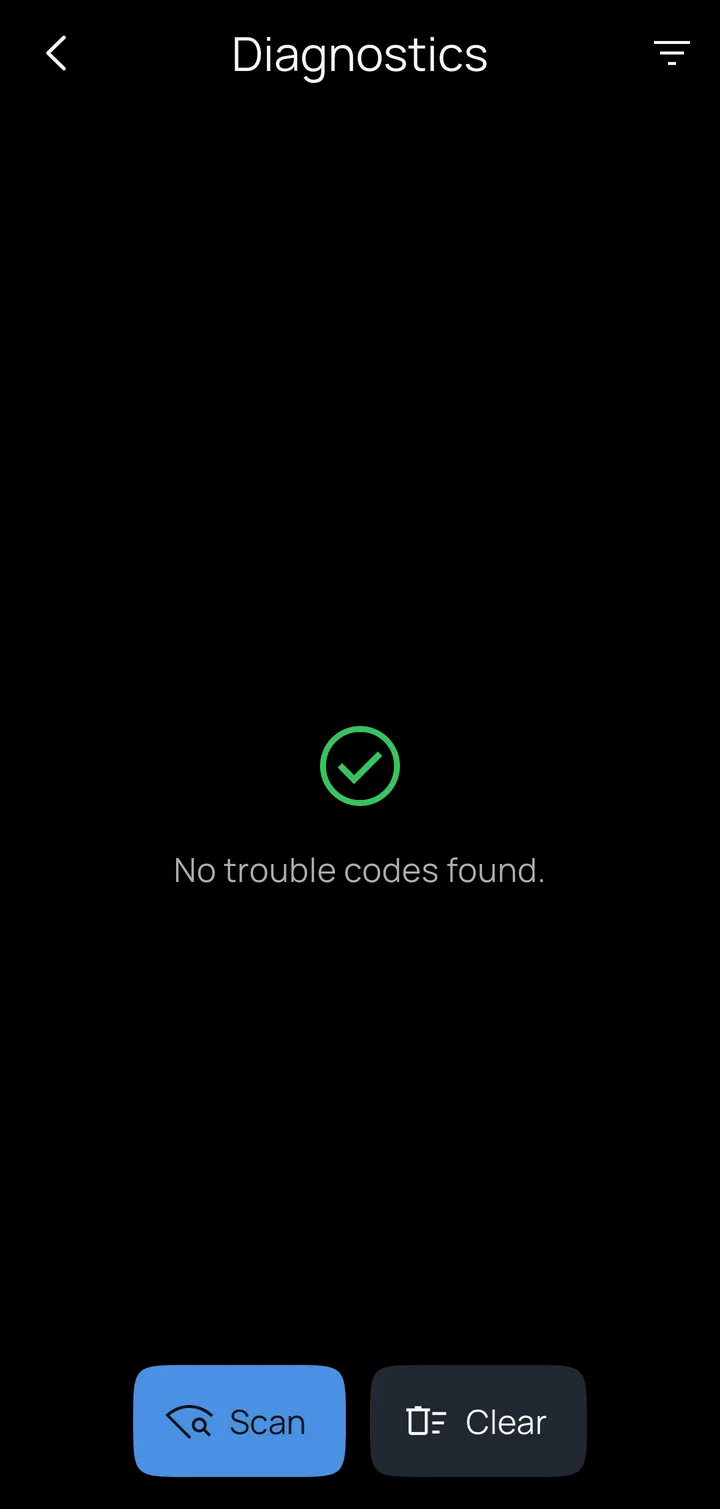
Tap Scan to read three kinds of codes:
| Status | Meaning |
|---|---|
| Stored | Confirmed faults. These are what turned the check-engine light on. |
| Pending | Seen this drive but not yet confirmed. They often disappear on their own if the fault doesn't come back. |
| Permanent | Kept by the vehicle until it has checked the fault is gone over several drives. No tool can erase them. |
Each code shows its family (Powertrain, Chassis, Body or Network) and, for common generic codes, a plain-English description built into the app, with no internet needed. Manufacturer-specific codes (such as P1xxx) mean different things on every make, so Kivo labels them as such rather than guessing: look them up in your vehicle's service information. The filter button at the top shows or hides each family.
Clear sends the standard clear command: it erases stored and pending codes and turns off the check-engine light. Kivo asks first, because clearing also resets the emissions readiness monitors; permanent codes stay until the vehicle clears them itself. After clearing, Kivo scans again so you can see what's left.
Clear list at the top only empties the list on screen; nothing is sent to the vehicle.
Diagnostics work through either:
- An OBD2 adapter, whenever it's connected and polling.
- A Kivo Core in CAN / OBD2 mode (firmware 0.19 or newer). Scans always start from the app; the controller never runs diagnostics on its own.
A scan is a snapshot of the vehicle you're connected to. The list clears when you switch profiles, so codes never carry over from another vehicle.