Adding devices
Add the Kivo Core, OBD2 adapters and tire-pressure sensors, and choose which vehicle uses which.
Applies to: Retail Kit, Kivo Core
On the home screen, tap Devices. The screen has three cards:
- Your profile (top): the devices this vehicle uses.
- Device library: devices the app knows that aren't assigned to this profile. They wait here, ready for any profile.
- Found nearby: a live scan that runs while the screen is open.
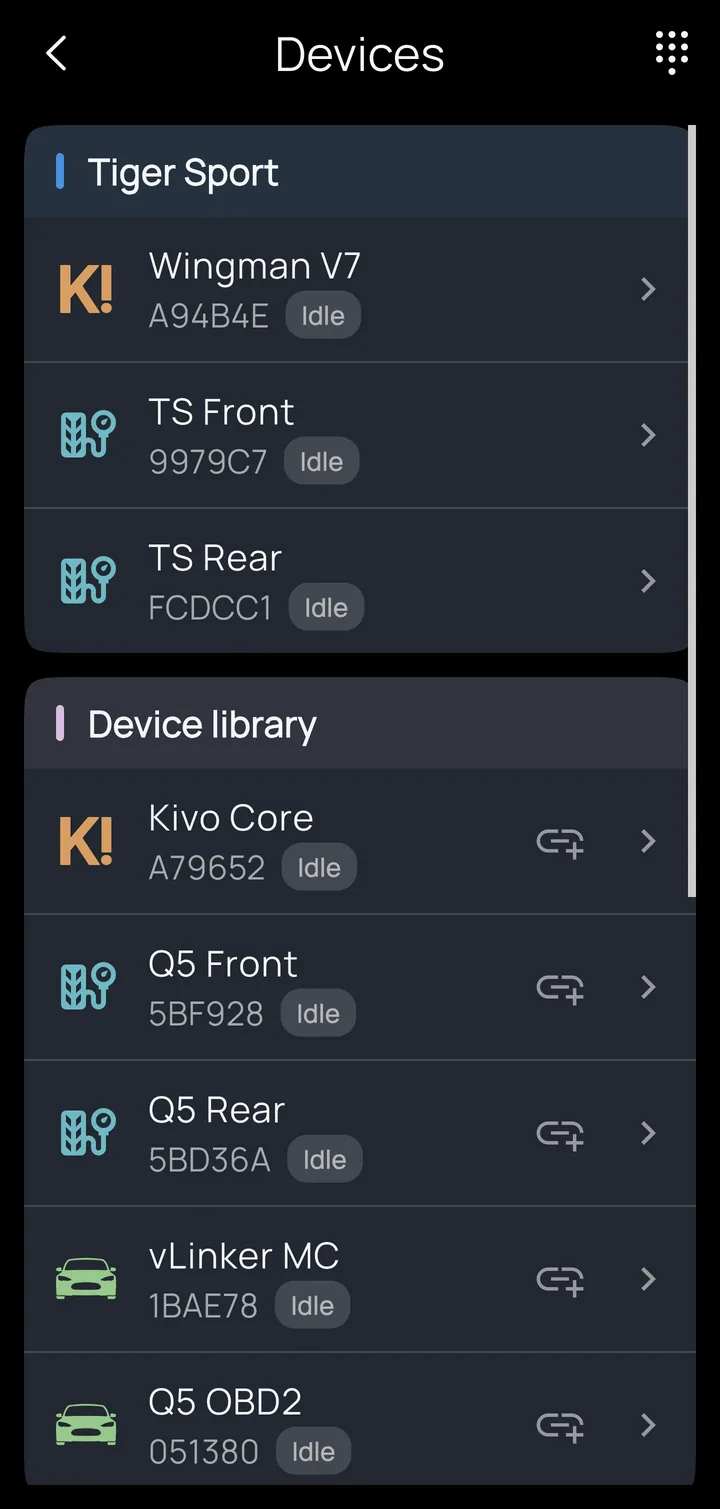
- To add a device, tap + Add next to it under Found nearby and give it a name. The name is used everywhere: dashboards, alarms and recordings.
- To use a library device on this vehicle, tap the link icon beside it.
- To see a device's details, live data and settings, tap the › at the end of its row.
How discovery works:
- Tire sensors appear on their own. They broadcast every few seconds, with no pairing needed. A sleeping sensor may need a short ride, or a pressure change, to wake up. Kivo is compatible with inexpensive Bluetooth tire pressure sensors that screw onto the valve stem.
- Bluetooth Classic adapters must be paired in your phone's Bluetooth settings first; then they appear here. Bluetooth LE devices are found directly.
- After reinstalling the app, devices still paired with your phone appear under Found nearby marked Paired, ready to add with one tap.
The Kivo Core
It works before you open the app. A new Kivo Core comes ready to ride: both outputs come on at level 2 when the bike powers up (levels 1–4 are 20 / 50 / 80 / 100 %), and the first four inputs are set up for the usual connections. Connect each to a wire that carries battery voltage when it's active:
| Input | Connect to | What happens |
|---|---|---|
| 1 | Left turn signal | Output 1 goes dark while the signal flashes, and comes back 1.5 s after |
| 2 | Right turn signal | The same for output 2 |
| 3 | Panic / hazard switch | Both outputs strobe while the switch is on |
| 4 | High beam / flash | Both outputs jump to level 4 while it's on, then return |
Pairing the app doesn't change this. The app reads the controller's settings and shows them as Left Turn, Right Turn, Panic and Bright, ready to rename or change.
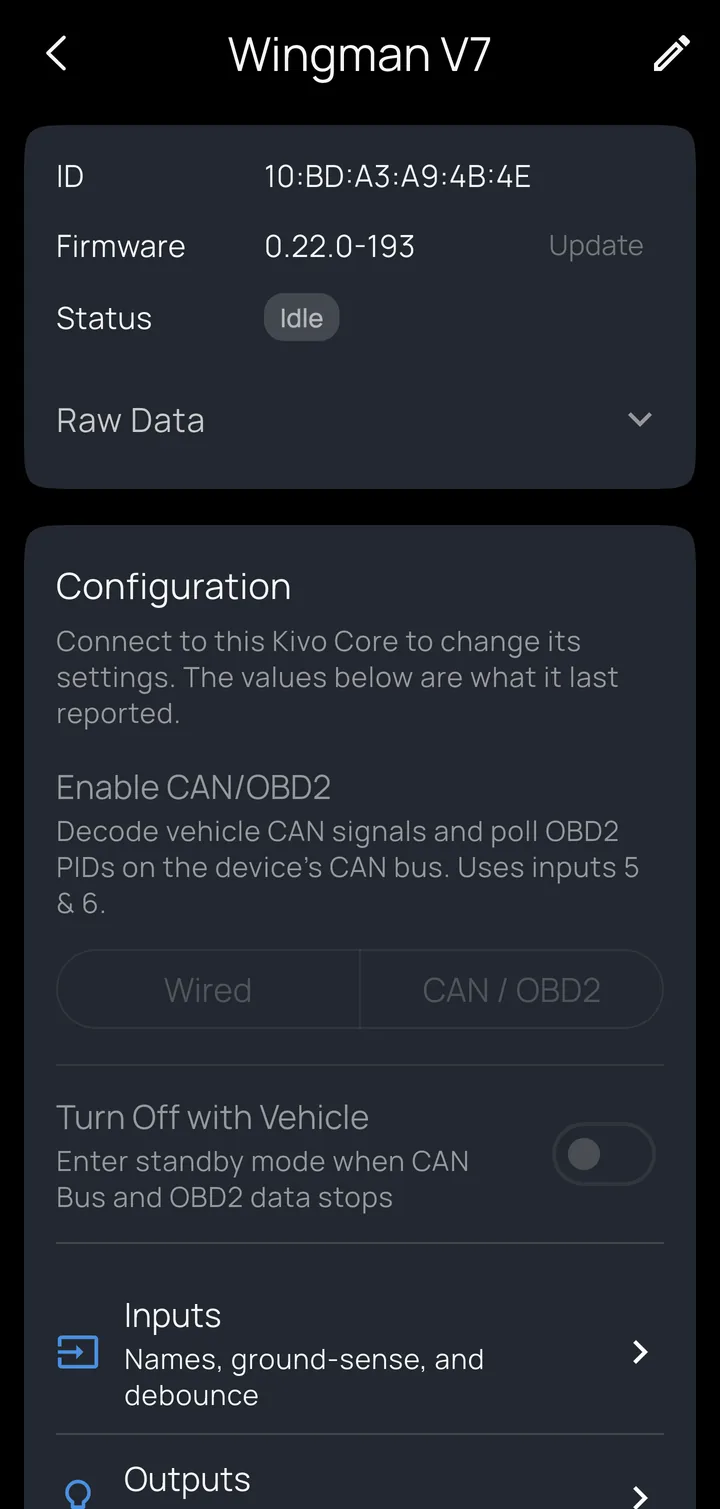
From the Kivo Core's details screen:
- Update the firmware over Bluetooth.
- Enable CAN/OBD2: choose Wired (all six inputs available) or CAN / OBD2 (the controller decodes the vehicle's CAN signals and polls OBD2 on its own bus; this uses inputs 5 and 6 for the CAN connection).
- Turn Off with Vehicle (CAN / OBD2 mode): the controller goes into standby when the vehicle's CAN and OBD2 data stops.
- Inputs and Outputs: names, behavior and levels.
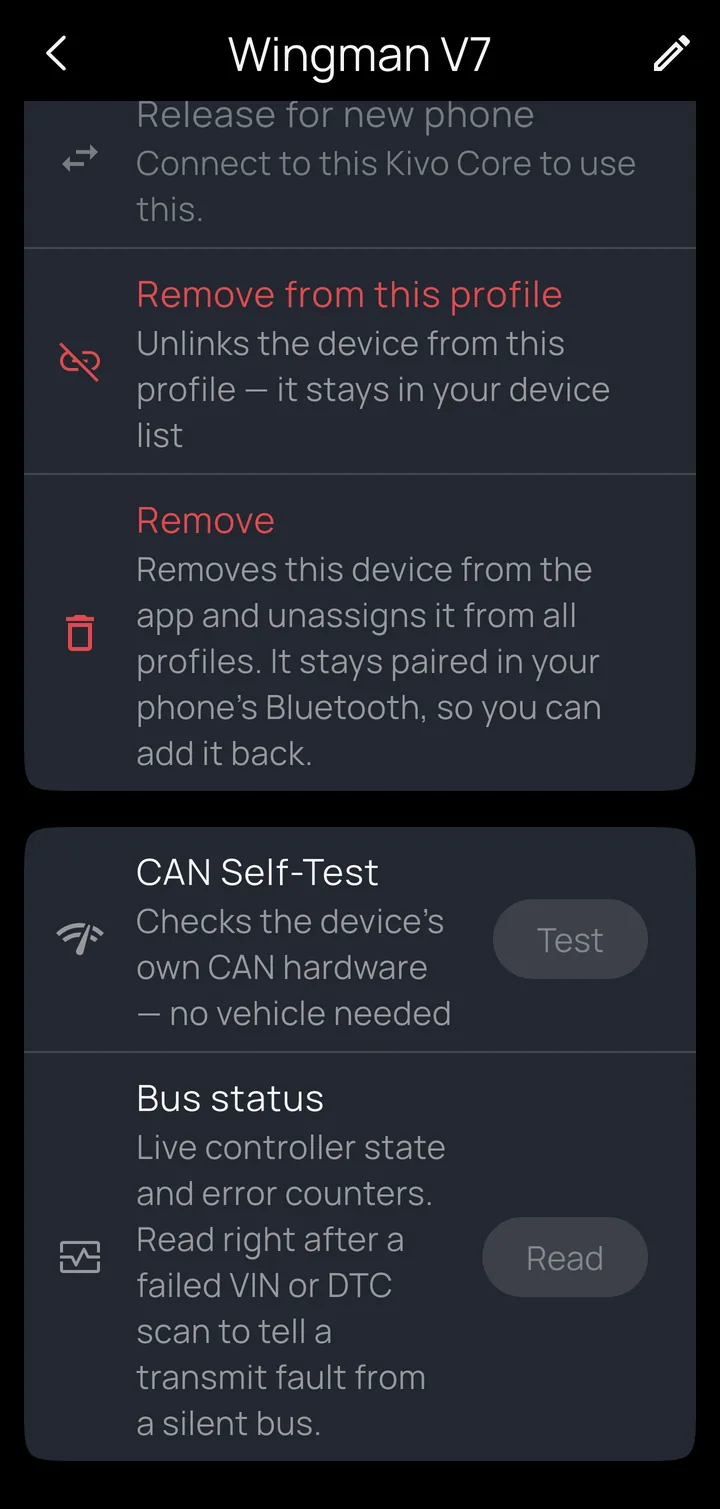
- Share Device: let a second phone pair with this Kivo Core, for a shared vehicle. Pairing stays open for about 2 minutes, and up to 3 phones can be enrolled. The Kivo Core accepts one connection at a time.
- Release for new phone: clears all pairing so a different phone can start fresh. It also removes the Kivo Core from your phone.
- CAN Self-Test checks the controller's own CAN hardware, with no vehicle needed, and Bus status shows live error counters. Use them to tell a wiring fault from a quiet bus.
Settings can only be changed while the Kivo Core is connected; otherwise the screen shows what it last reported.
Note
Once a Kivo Core is paired with a phone, it ignores pairing attempts from other phones unless you share it, so a stranger can't connect to your bike.
OBD2 adapters
Kivo works with the ELM327 command set used by almost every consumer OBD2 adapter, over two kinds of Bluetooth:
| Connection | Phones | Examples |
|---|---|---|
| Bluetooth LE | Android and iPhone | VLinker MC, OBDLink CX, Kiwi 3 |
| Bluetooth Classic | Android only | Most inexpensive "ELM327 v1.5" adapters, VLinker MS |
- iPhone users need a Bluetooth LE adapter. iOS doesn't let apps use Bluetooth Classic adapters, so most budget clones won't work. Wi-Fi adapters aren't supported on either.
- For raw CAN Bus listening (see CAN Bus) you need an adapter with an STN chip: VLinker MC / MX, OBDLink CX / LX / MX, or PLX Kiwi 3 / 4. The VLinker MS can't do this. On a capable adapter, its details screen offers Data mode: OBD2 PID or CAN Bus.
- Kivo recognizes adapters by name (OBDLink, VLinker, Kiwi, Vgate, Veepeak, Konnwei, BAFX, and anything with "OBD" or "ELM327" in its name). If yours doesn't appear, pair it in your phone's Bluetooth settings first.
- Quality matters: slow clones lower the data rate (see how fast OBD2 updates).
- Each adapter's details screen has an Adapter Self-Test (no vehicle needed) and Bus status (protocol, adapter voltage and polling state).
Warning
Don't have a Kivo Core in CAN / OBD2 mode and an OBD2 adapter polling on the same vehicle: two devices would be transmitting on the bus. The app warns you about this. Poll with one of them, or set the adapter to CAN Bus (listen-only) mode.
Tire-pressure (TPMS) sensors
Kivo supports Bluetooth TPMS sensors: the common aftermarket internal and valve-cap sensors that broadcast pressure, temperature and battery level.
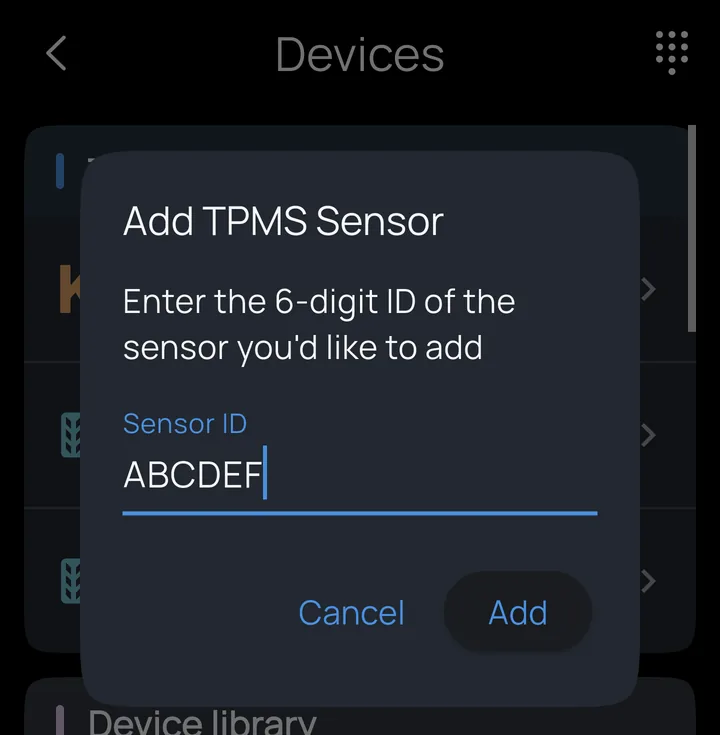
- Adding: sensors appear under Found nearby by themselves. If one won't wake up on the bench, tap the keypad icon at the top right of the Devices screen and type the 6-digit ID printed on the sensor (it can include the letters A–F).
- One per wheel. Name each one ("Front", "Rear"); the name is used in alarms, dashboards and recordings.
- A low-pressure alarm comes with each sensor, at 32 psi, which you can change or delete in Alarms.
- Battery level is on the sensor's details screen.
- No stale numbers: if a sensor hasn't been heard from for 6 minutes (out of range, bike parked), its readings are cleared, so dashboards show no data rather than an old number, and pressure alarms stop rather than firing on stale values.
Removing devices
- Remove from this profile unlinks a device from this vehicle; it stays in your library for other profiles.
- Remove deletes it from the app and from all profiles, with a warning if alarms or actions depend on it. It stays paired in your phone's Bluetooth settings, so you can add it back. Alarms that used it aren't deleted; they work again if you assign a replacement that provides the same readings.