Getting started with the Kivo app
What you need, setting up the app for the first time, and a tour of the home screen.
Applies to: Retail Kit, Kivo Core
What you need
Required: an Android or iPhone with Bluetooth.
Optional, depending on what you want to do:
| Hardware | What it adds |
|---|---|
| Kivo Core controller | Wired inputs (brake, turn signals, switches), two high-power switched outputs, CAN Bus decoding on the vehicle itself, and OBD2 polling that keeps running even when your phone is away. |
| Bluetooth OBD2 adapter | CAN Bus and live engine data (RPM, coolant temperature, throttle and about 40 more values), trouble-code reading, and automatic vehicle recognition by VIN. Works on any OBD2 vehicle (2008 and newer in the US, and many earlier ones). |
| Bluetooth tire-pressure (TPMS) sensors | Live tire pressure and temperature, with low-pressure alarms. |
Everything else works with the phone alone: GPS speed, lean angle and G-force from the phone's motion sensors, the compass, weather and ride recording.
First-time setup
- Choose your language. Kivo speaks and shows English, Spanish, French, German, Italian, Portuguese and Chinese.
- Read the safety notice and tap Agree.
-
Allow the permissions Kivo asks for:
- Bluetooth, to talk to your devices.
- Location, for GPS speed, maps and speed-based features. On Android, Kivo then explains background location, which lets alerts and recording carry on with the screen off. Tap Continue to allow it.
- Notifications, for the Kivo status notification.
You can change these later in your phone's own settings, under Apps → Kivo. 4. Add your devices (see Devices). On a new profile the Devices node pulses Start Here. 5. Open Screens and arrange your dashboard (see Dashboards).
Warning
Set the app up before you ride, and keep your eyes on the road. Kivo is designed to be heard, not watched.
The home screen
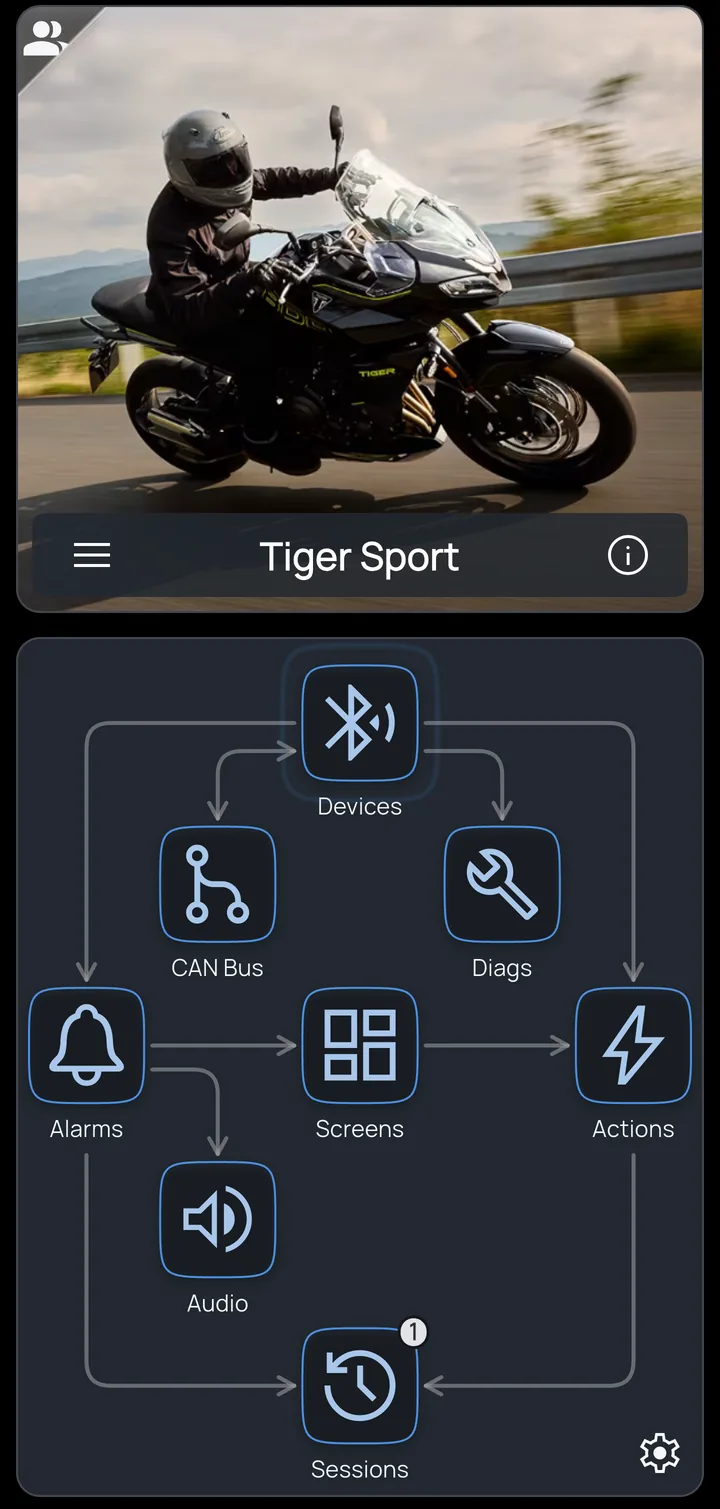
The top card is your profile: one per vehicle, with its photo and name (see Profiles). Below it is a map of what Kivo does. Each box opens a part of the app, and the lines show how they connect: devices feed alarms and dashboards, alarms and actions get recorded in sessions. Connections light up when a device is connected.
| Box | What it's for |
|---|---|
| Devices | Add and manage your Kivo Core, OBD2 adapters and tire sensors. |
| CAN Bus | Load a DBC file and decode your vehicle's CAN signals. |
| Diags | Read and clear trouble codes. |
| Alarms | When this happens, tell me. |
| Screens | Your dashboards. |
| Actions | When this happens, do this: lights, buttons and inputs. |
| Audio | Alert volume and speed-sensitive volume. |
| Sessions | Recorded rides, with a badge for new ones. |
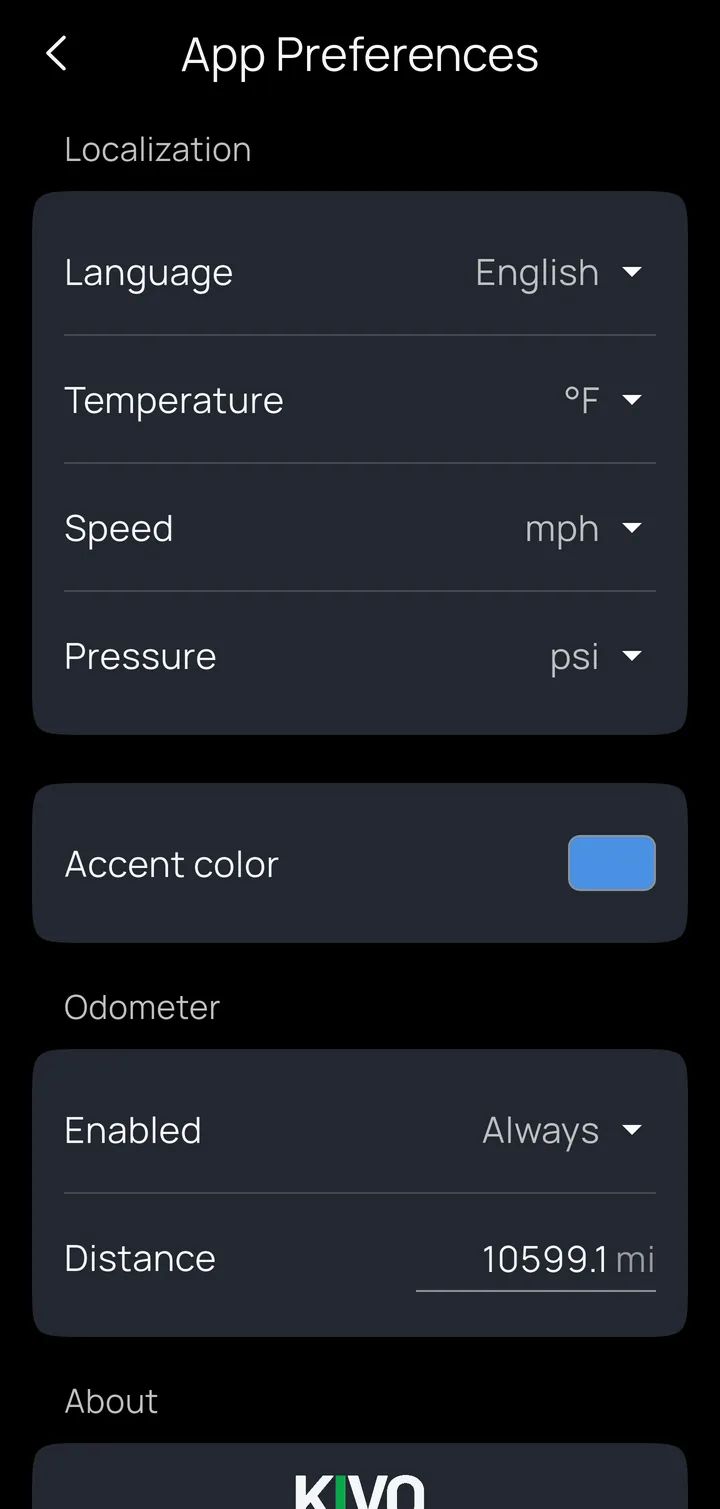
The gear at bottom right opens App Preferences: language, units (temperature, speed, pressure), accent color, the odometer, and the app and firmware versions under About. These settings are common to all profiles.