Profiles
Keep each vehicle's devices, alarms, dashboards and settings together, and let Kivo switch between them for you.
Every setting that describes a vehicle lives in its profile: its devices, DBC file, alarms, actions, dashboard screens, theme and trip meters. Switching profiles switches everything at once.
Switching profiles
Tap the people icon in the top-left corner of the profile card. Your profiles fan out side by side; swipe and tap the one you want. The active one is marked Active.
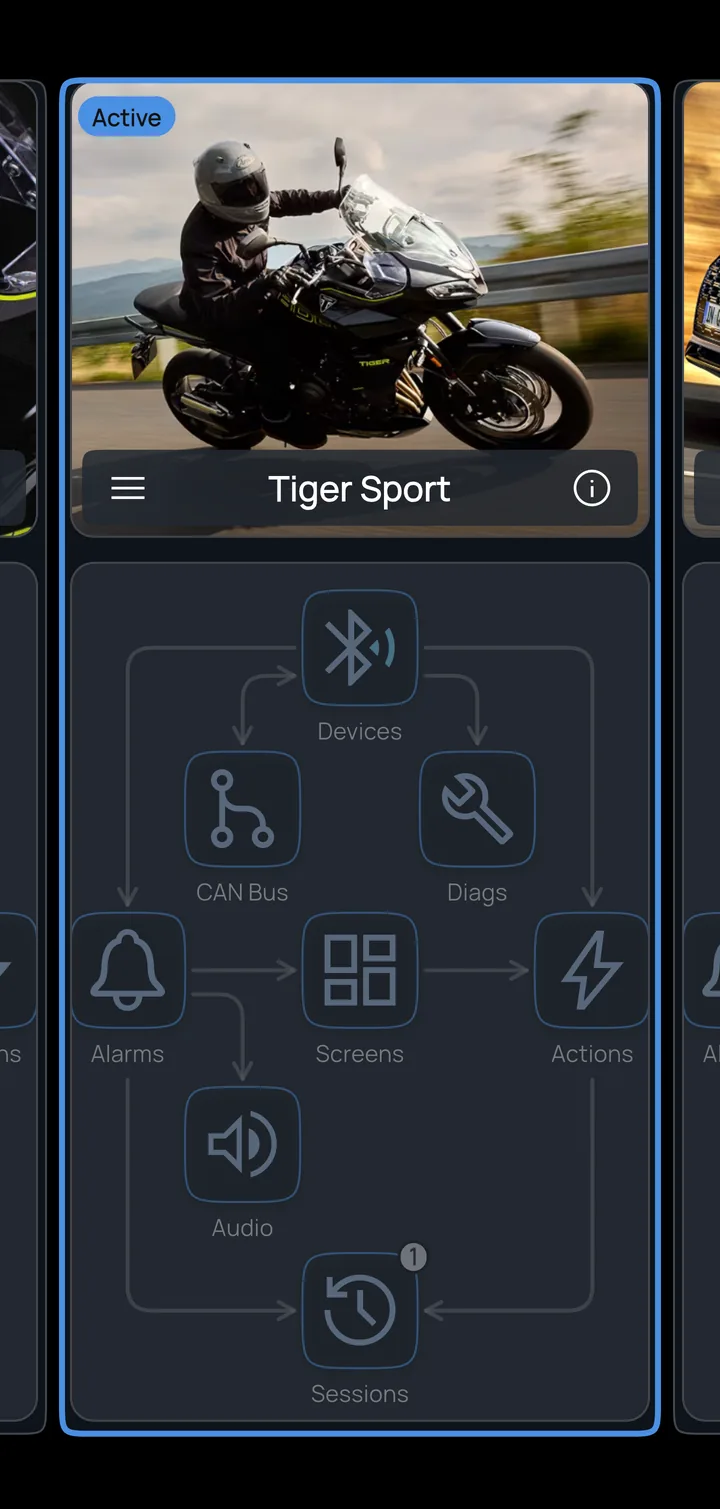
The last card in the row is for adding one: New Profile, or Import from file for a profile someone has shared with you.
Tap ⓘ on the profile card to see the profile's statistics: alarms, actions, devices, screens, sessions, trip meters and when it was last used.
The profile menu
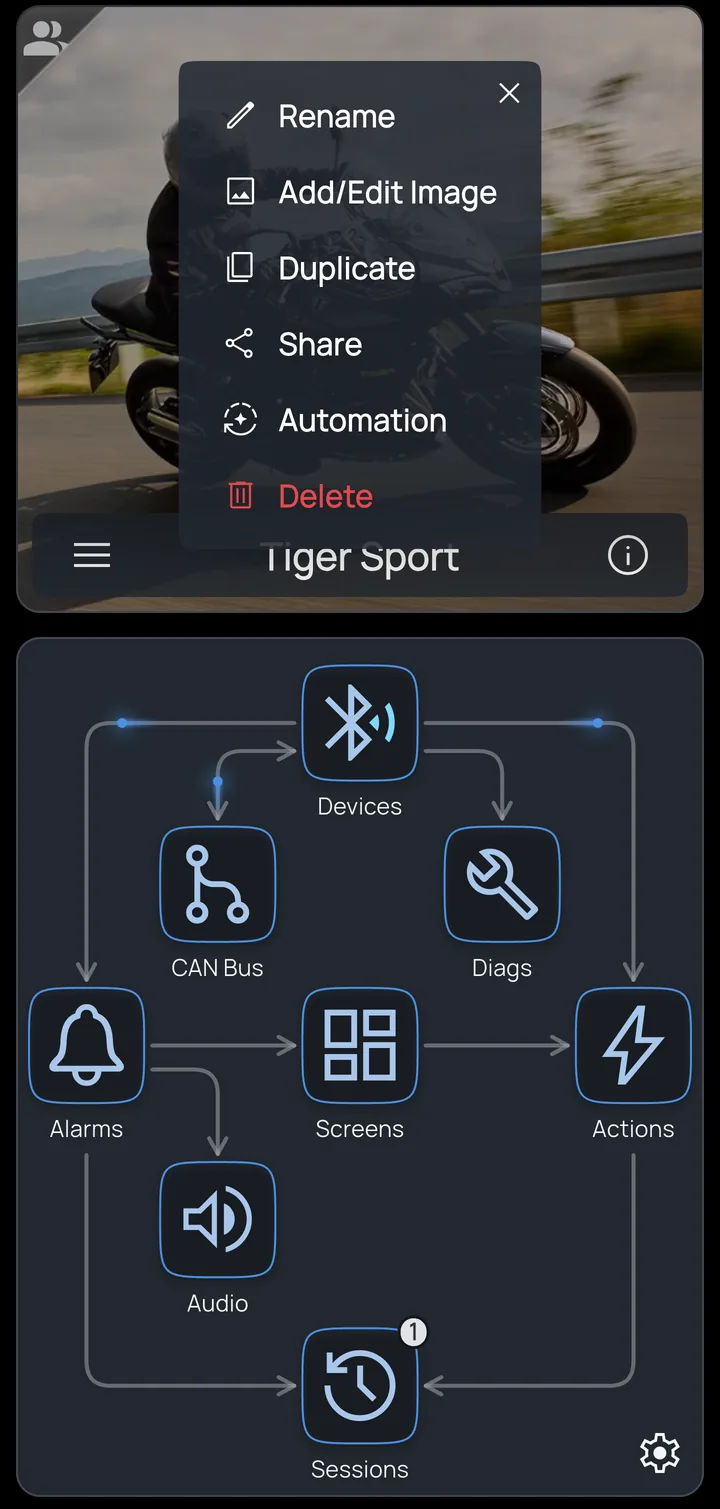
Tap ☰ on the profile card:
- Rename and Add/Edit Image: the photo fills the profile card.
- Duplicate: a copy to start a similar vehicle from.
- Share: export the profile as a file. It includes a list of the devices it uses. When someone imports it, they can keep the devices (so the sensors and adapters work straight away, if they have them) or choose Import without devices.
- Automation: see below.
- Delete.
Tip
The Kivo Profile Studio web tool builds a complete profile in a browser (alarms, actions, dashboard screens, settings, photo) and exports the same file, ready to import on your phone. Bluetooth pairing still happens on the phone.
Automation: switching and recording by themselves
☰ → Automation has two parts.
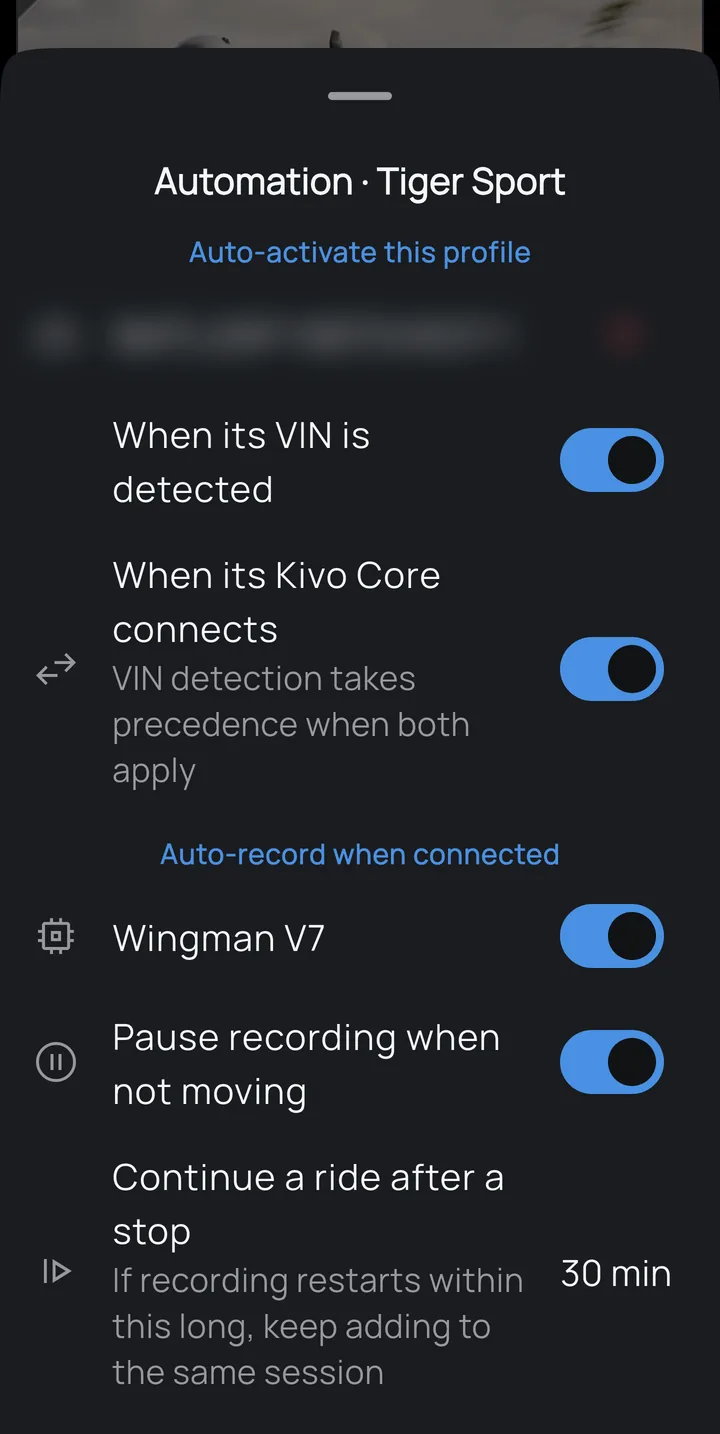
Auto-activate this profile
- When its VIN is detected. Tap Read VIN while an OBD2 adapter (or a Kivo Core in CAN / OBD2 mode) is connected to the vehicle, and Kivo saves the vehicle's VIN to this profile. From then on, whenever that VIN is seen, Kivo switches to this profile. Kivo never saves a VIN on its own. Forget VIN removes it.
- When its Kivo Core connects. Switch to this profile as soon as its Kivo Core connects; useful for vehicles without OBD2. If both apply, the VIN wins, because it identifies the vehicle rather than the device plugged into it.
Auto-record when connected
- A switch for each of the profile's devices: recording starts a few seconds after that device connects. For an OBD2 adapter, Kivo waits until the vehicle is actually in use (engine turning or the bike moving), so it won't record the bike sitting in the garage.
- Pause recording when not moving leaves stops out of the log, so ten minutes at a fuel pump doesn't clutter the ride.
- Continue a ride after a stop: if recording restarts within this many minutes, it adds to the same session, so a fuel stop doesn't split your ride in two.
A profile switch can announce itself: add an alarm on the Profile Activated trigger and Kivo says the profile's name, or any phrase you choose.