Recording your rides
Record GPS tracks and every reading automatically, then replay, trim and export them.
On the home screen, tap Sessions to see your recorded rides, newest first. New ones are marked New.
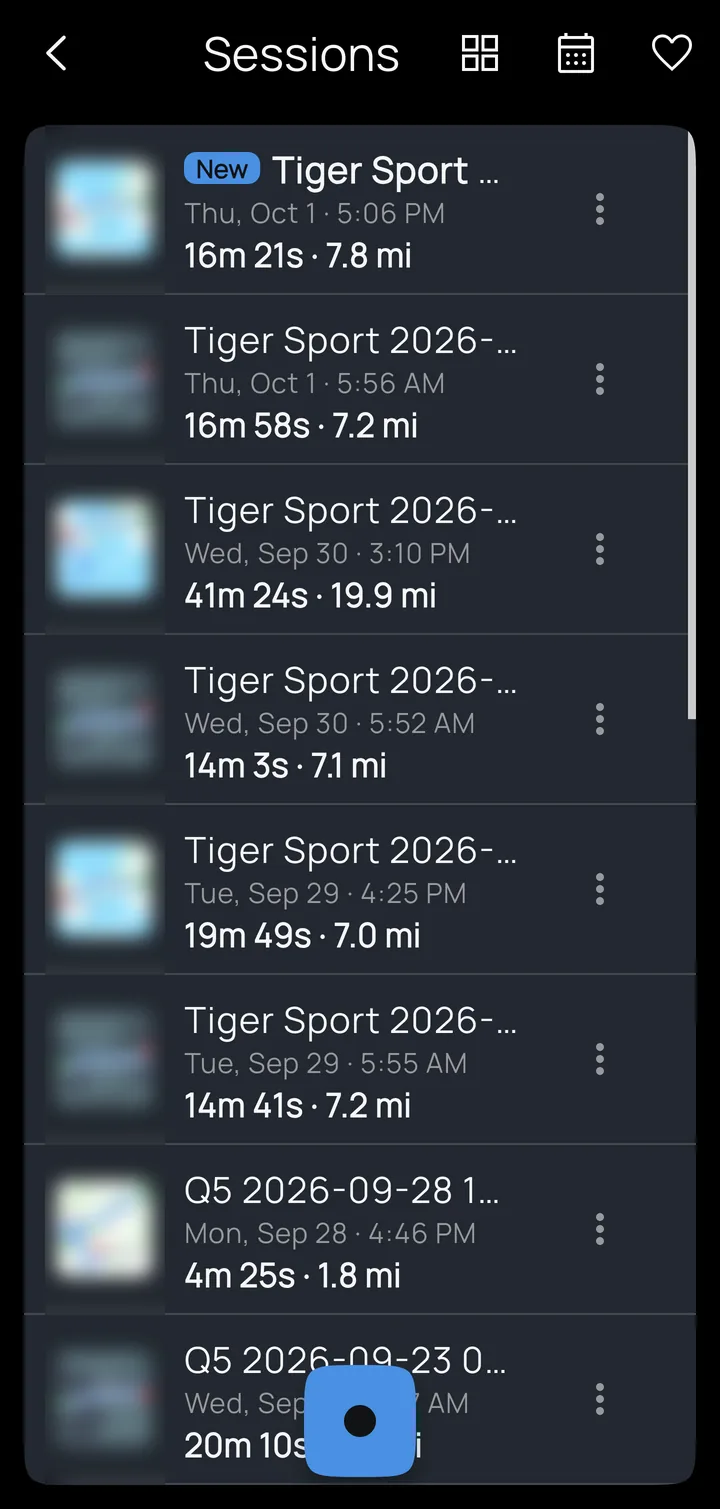
What's recorded
The GPS track; every active reading (OBD2 values, CAN signals, tire pressures and temperatures, the Kivo Core's inputs and outputs, lean, pitch and G-force); alarm and action events as markers on the timeline; and any notes you add afterward. Recordings survive crashes: an interrupted session is recovered the next time the app opens.
Starting and stopping
- By hand: the record button at the bottom of Sessions, or a dashboard button.
- Automatically: turn on Auto-record when connected for a device in the profile's Automation settings (see Profiles). Recording starts a few seconds after the device connects and stops shortly after it disconnects. With an OBD2 adapter, Kivo waits until the vehicle is actually in use, and keeps recording through an engine-off stop at a red light.
- Markers: tap a marker button any time to flag a moment. If nothing is recording, a marker starts a recording so the moment isn't lost.
Playback
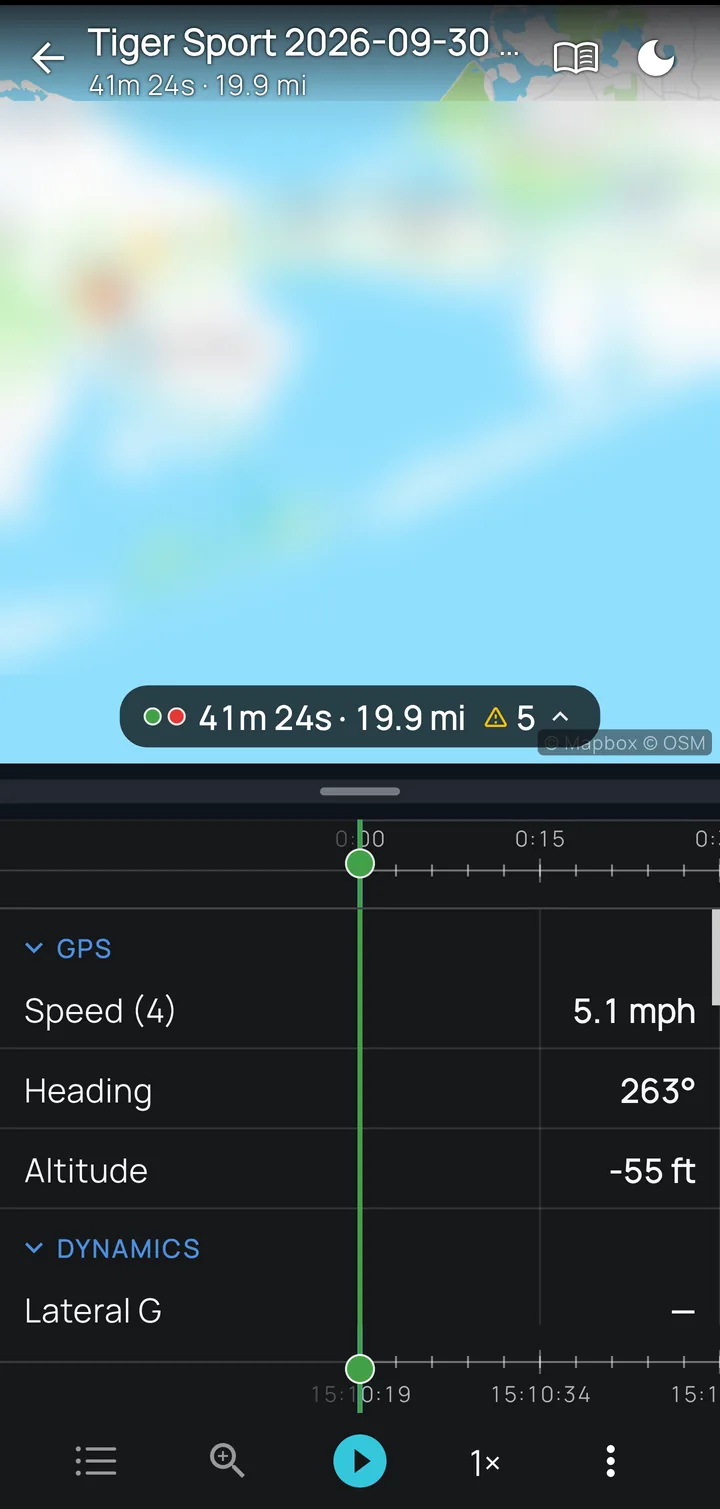
Tap a session to open it: the route on a map, with every reading below it on a timeline. Tap ▶ to replay the ride, or drag the timeline to see every reading at that instant. Alarm events show as amber marks and your markers in blue. The toolbar has Channels (which readings to show), Zoom, Play, playback speed and More; the header has Session notes and a night map.
Trimming and exporting
Drag the green and red handles to select part of the ride. Under More:
- Trim to selection keeps only the selected part.
- Export CSV saves the data as a compressed spreadsheet file: full detail or one row every 1 or 5 seconds, all readings or just the ones showing, the whole ride or the selection.
- Favorite and Delete.
The list's top bar switches between list and grid view, and filters by dates and favorites. Long-press a session to select several, then export, favorite, mark as played or delete them together.